
AI Reading
Quick summary of this article
This guide explains how to securely connect a local Git repository to GitHub using SSH keys, which eliminates the need for passwords or personal access tokens. The process involves initializing Git, generating an SSH key pair, adding the public key to GitHub, and then pushing code with a simple command.
- Initialize Git in your project folder with
git init, then add and commit your files usinggit add .andgit commit -m "First commit". - Generate an SSH key with
ssh-keygen -t ed25519 -C "your_email@example.com"— press Enter to accept defaults and optionally add a passphrase. - Copy your public key (found in
~/.ssh/id_ed25519.pub) and add it to GitHub under Settings → SSH and GPG keys → New SSH key. - Test the connection with
ssh -T git@github.com— you should see a success message confirming authentication. - Link your repository with
git remote add origin git@github.com:username/repository.gitand push usinggit push -u origin main.
Introduction
Connecting your local Git repository to GitHub using SSH is a secure and convenient way to push your code without using passwords or Personal Access Tokens (PAT).
This guide walks you through the process step by step.
Step 1: Initialize Git in Your Project
First, navigate to your project folder and initialize Git:
cd /path/to/your/project
git init
—
Step 2: Add and Commit Your Files
Add all your project files and commit your first version:
git add .
git commit -m "First commit"
—
Step 3: Generate an SSH Key
If you don’t have an SSH key, generate one with:
ssh-keygen -t ed25519 -C "your_email@example.com"


Example :  $ ssh-keygen -t ed25519 -C "saz3sumar@mail.com"
Press Enter to accept defaults and optionally add a passphrase.
ACESOFTECH@Tanzil MINGW64 /e/gitweb (main)
$ cat ~/.ssh/id_ed25519.pub
ssh-ed25519 AAAAC3NzaC1lZfghI1NTE5AAAAIJbhghfXrxSfycjwPY0x6pEmn/L+Eng5h4bJCXVl8lRGLtN0 saz3sumar@mail.com
—
Step 4: Add the SSH Key to GitHub
Copy your public key and add it to GitHub:
cat ~/.ssh/id_ed25519.pub
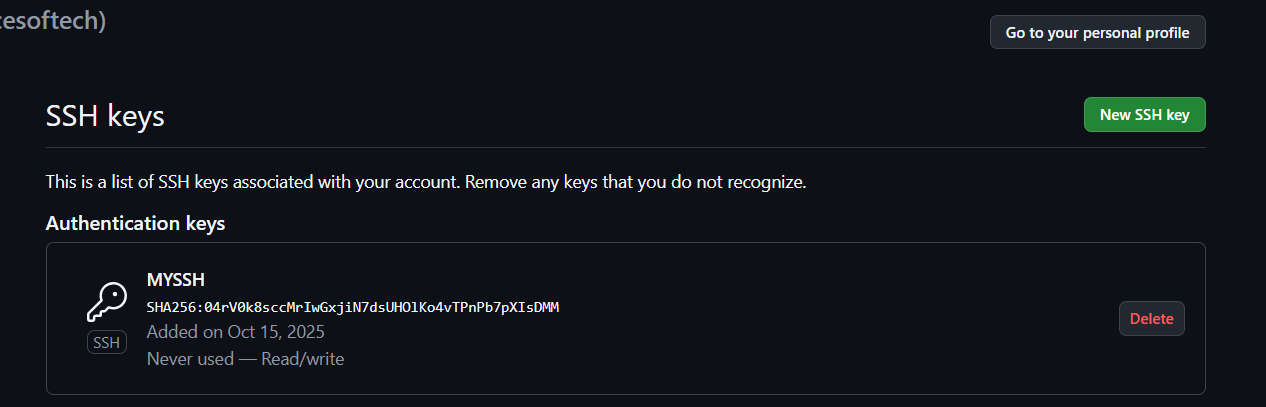
Then go to GitHub → Settings → SSH and GPG keys → New SSH key and paste the key. Give it a title like My Laptop Key.
Like this: ssh-ed25519 AAAAC3NzaC1lZDI1NTE5AAAAIJbXrxSfycjwPY0x6pEmn/L+Eng5h4bJCXVl8lRGLtN0 saz3sumar@mail.com
—
Step 5: Test SSH Connection
Verify your SSH connection to GitHub:
ssh -T git@github.com
You should see:
 Hi acesoftech! You've successfully authenticated, but GitHub does not provide shell access.
—
Step 6: Set Remote and Push Code
Link your local repo to GitHub using SSH and push your first commit:
git remote add origin git@github.com:acesoftech/githubtest.git
git push -u origin main
—
Summary
Using SSH to connect Git to GitHub ensures secure, password-free authentication. Once set up, you can push, pull, and manage your repositories easily.
Tip 1: Use SSH Always
SSH keys are safer and avoid the hassle of HTTPS credentials or tokens.
Tip 2: Keep Your Key Secure
Do not share your private key. Only the public key goes to GitHub.
Tip 3: Test Before Push
Always run ssh -T git@github.com to ensure authentication works.