
MainAxisAlignment
MainAxisAlignment controls how children are positioned along the main axis of a Row or Column. For a Row, the main axis is horizontal, and for a Column, the main axis is vertical.
CrossAxisAlignment
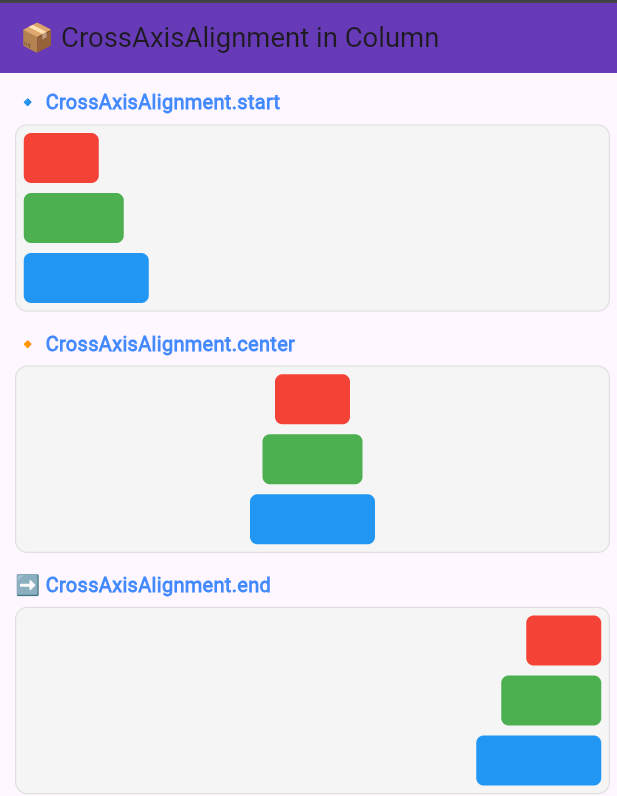
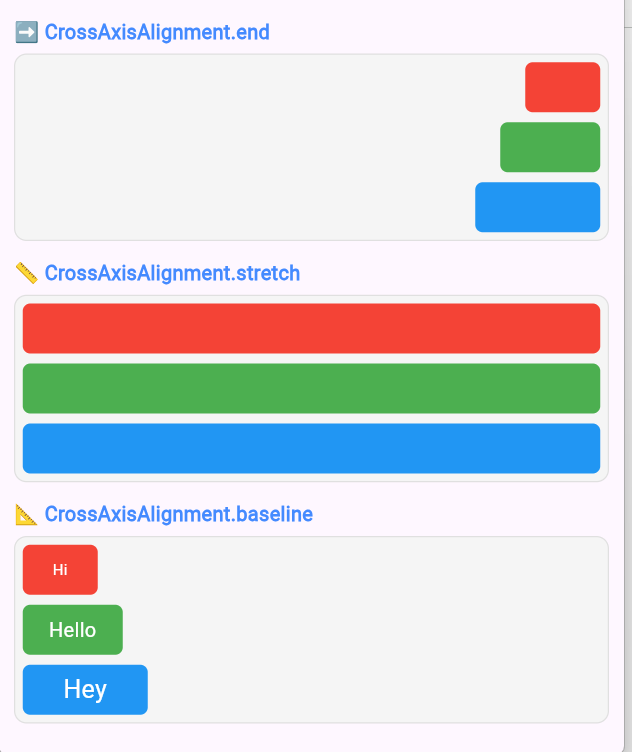
CrossAxisAlignment controls how children are positioned along the cross axis, which is perpendicular to the main axis. For a Row, the cross axis is vertical, and for a Column, the cross axis is horizontal.
Flutter Alignment Comparison Table
| Type | Row | Column |
|---|---|---|
| Main Axis | 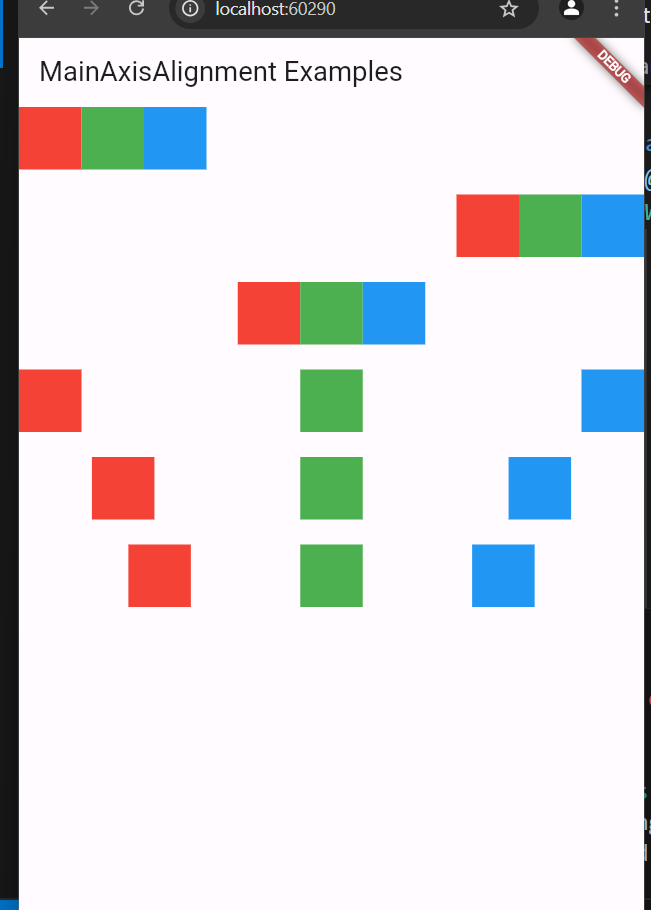 |
 |
| Cross Axis | 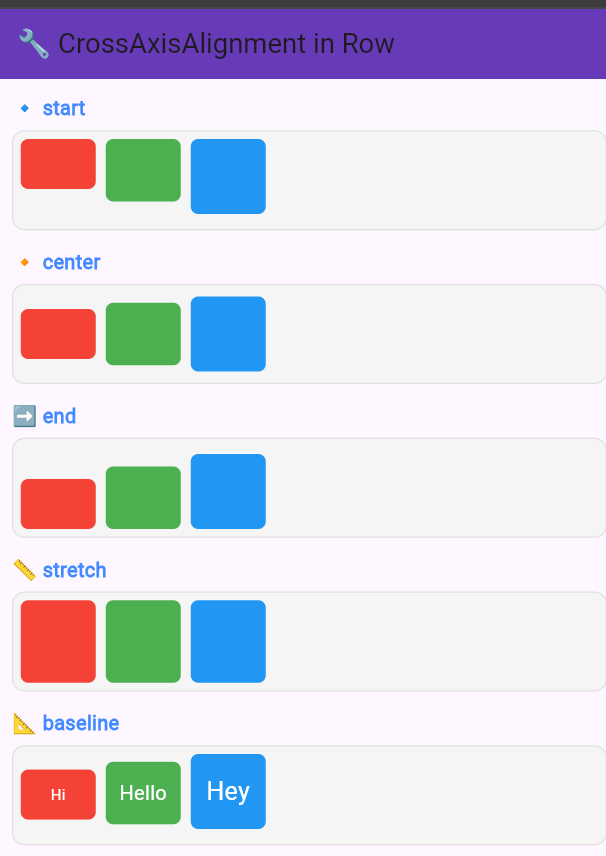 |
  |
MainAxisAlignment Options
MainAxisAlignment has the following options:
MainAxisAlignment.startMainAxisAlignment.endMainAxisAlignment.centerMainAxisAlignment.spaceBetweenMainAxisAlignment.spaceAroundMainAxisAlignment.spaceEvenly
Let’s look at examples for each using Row:
Flutter Example: MainAxisAlignment in a Row
// Import Flutter package
import 'package:flutter/material.dart';

void main() {
  runApp(MyApp());
}

class MyApp extends StatelessWidget {
  @override
  Widget build(BuildContext context) {
    return MaterialApp(
      home: Scaffold(
        appBar: AppBar(title: Text('MainAxisAlignment Examples')),
        body: Column(
          children: [

            // MainAxisAlignment.start
            Row(
              mainAxisAlignment: MainAxisAlignment.start,
              children: [
                Container(width: 50, height: 50, color: Colors.red),
                Container(width: 50, height: 50, color: Colors.green),
                Container(width: 50, height: 50, color: Colors.blue),
              ],
            ),
            SizedBox(height: 20),

            // MainAxisAlignment.end
            Row(
              mainAxisAlignment: MainAxisAlignment.end,
              children: [
                Container(width: 50, height: 50, color: Colors.red),
                Container(width: 50, height: 50, color: Colors.green),
                Container(width: 50, height: 50, color: Colors.blue),
              ],
            ),
            SizedBox(height: 20),

            // MainAxisAlignment.center
            Row(
              mainAxisAlignment: MainAxisAlignment.center,
              children: [
                Container(width: 50, height: 50, color: Colors.red),
                Container(width: 50, height: 50, color: Colors.green),
                Container(width: 50, height: 50, color: Colors.blue),
              ],
            ),
            SizedBox(height: 20),

            // MainAxisAlignment.spaceBetween
            Row(
              mainAxisAlignment: MainAxisAlignment.spaceBetween,
              children: [
                Container(width: 50, height: 50, color: Colors.red),
                Container(width: 50, height: 50, color: Colors.green),
                Container(width: 50, height: 50, color: Colors.blue),
              ],
            ),
            SizedBox(height: 20),

            // MainAxisAlignment.spaceAround
            Row(
              mainAxisAlignment: MainAxisAlignment.spaceAround,
              children: [
                Container(width: 50, height: 50, color: Colors.red),
                Container(width: 50, height: 50, color: Colors.green),
                Container(width: 50, height: 50, color: Colors.blue),
              ],
            ),
            SizedBox(height: 20),

            // MainAxisAlignment.spaceEvenly
            Row(
              mainAxisAlignment: MainAxisAlignment.spaceEvenly,
              children: [
                Container(width: 50, height: 50, color: Colors.red),
                Container(width: 50, height: 50, color: Colors.green),
                Container(width: 50, height: 50, color: Colors.blue),
              ],
            ),
          ],
        ),
      ),
    );
  }
}
MainAxisAlignment in Column
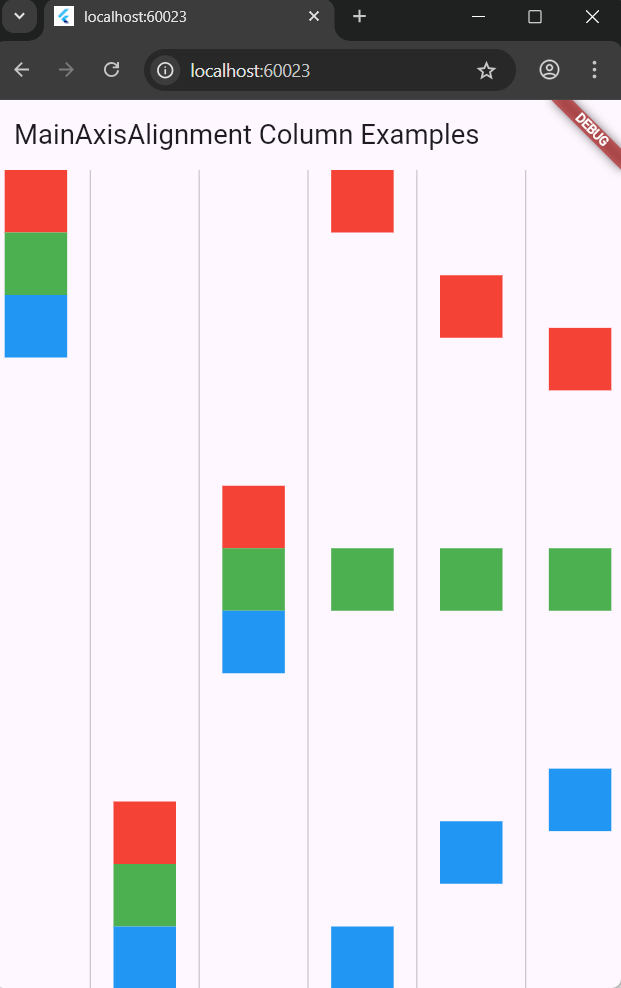
MainAxisAlignment controls how children are aligned vertically inside a Column.
Options include:
MainAxisAlignment.start– Aligns children to the top.MainAxisAlignment.end– Aligns children to the bottom.MainAxisAlignment.center– Centers the children vertically.MainAxisAlignment.spaceBetween– Even vertical space between children, none at top/bottom.MainAxisAlignment.spaceAround– Even space around each child, with half space at top/bottom.MainAxisAlignment.spaceEvenly– Equal vertical space between all children and edges.
Simple Flutter Example (MainAxisAlignment with Column)
import 'package:flutter/material.dart';

void main() {
  runApp(MaterialApp(
    home: Scaffold(
      appBar: AppBar(title: Text('MainAxisAlignment (Column)')),
      body: Row(
        children: [

          // start
          Expanded(
            child: Container(
              color: Colors.grey[200],
              child: Column(
                mainAxisAlignment: MainAxisAlignment.start,
                children: buildBoxes(),
              ),
            ),
          ),

          // end
          Expanded(
            child: Container(
              color: Colors.grey[300],
              child: Column(
                mainAxisAlignment: MainAxisAlignment.end,
                children: buildBoxes(),
              ),
            ),
          ),

          // center
          Expanded(
            child: Container(
              color: Colors.grey[200],
              child: Column(
                mainAxisAlignment: MainAxisAlignment.center,
                children: buildBoxes(),
              ),
            ),
          ),

          // spaceBetween
          Expanded(
            child: Container(
              color: Colors.grey[300],
              child: Column(
                mainAxisAlignment: MainAxisAlignment.spaceBetween,
                children: buildBoxes(),
              ),
            ),
          ),

          // spaceAround
          Expanded(
            child: Container(
              color: Colors.grey[200],
              child: Column(
                mainAxisAlignment: MainAxisAlignment.spaceAround,
                children: buildBoxes(),
              ),
            ),
          ),

          // spaceEvenly
          Expanded(
            child: Container(
              color: Colors.grey[300],
              child: Column(
                mainAxisAlignment: MainAxisAlignment.spaceEvenly,
                children: buildBoxes(),
              ),
            ),
          ),

        ],
      ),
    ),
  ));
}

List buildBoxes() {
  return [
    Container(width: 40, height: 40, color: Colors.red),
    Container(width: 40, height: 40, color: Colors.green),
    Container(width: 40, height: 40, color: Colors.blue),
  ];
}
This example shows how each MainAxisAlignment option affects vertical alignment of children in a Column, placed side-by-side for comparison.
CrossAxisAlignment Options
CrossAxisAlignment has the following options when used with Column:
CrossAxisAlignment.startCrossAxisAlignment.endCrossAxisAlignment.centerCrossAxisAlignment.stretchCrossAxisAlignment.baseline(requiresTextBaseline)
Flutter Example: CrossAxisAlignment with Column
// Import Flutter package
import 'package:flutter/material.dart';

void main() {
  runApp(MaterialApp(home: Scaffold(body: CrossAxisColumnExamples())));
}

class CrossAxisColumnExamples extends StatelessWidget {
  @override
  Widget build(BuildContext context) {
    return SingleChildScrollView(
      child: Column(
        children: [

          // CrossAxisAlignment.start – Aligns children to the left
          Container(
            color: Colors.grey[200],
            height: 100,
            width: double.infinity,
            child: Column(
              crossAxisAlignment: CrossAxisAlignment.start,
              children: [
                Container(width: 100, height: 30, color: Colors.red),
                Container(width: 80, height: 40, color: Colors.green),
                Container(width: 60, height: 50, color: Colors.blue),
              ],
            ),
          ),
          SizedBox(height: 20),

          // CrossAxisAlignment.end – Aligns children to the right
          Container(
            color: Colors.grey[300],
            height: 100,
            width: double.infinity,
            child: Column(
              crossAxisAlignment: CrossAxisAlignment.end,
              children: [
                Container(width: 100, height: 30, color: Colors.red),
                Container(width: 80, height: 40, color: Colors.green),
                Container(width: 60, height: 50, color: Colors.blue),
              ],
            ),
          ),
          SizedBox(height: 20),

          // CrossAxisAlignment.center – Centers children horizontally
          Container(
            color: Colors.grey[400],
            height: 100,
            width: double.infinity,
            child: Column(
              crossAxisAlignment: CrossAxisAlignment.center,
              children: [
                Container(width: 100, height: 30, color: Colors.red),
                Container(width: 80, height: 40, color: Colors.green),
                Container(width: 60, height: 50, color: Colors.blue),
              ],
            ),
          ),
          SizedBox(height: 20),

          // CrossAxisAlignment.stretch – Expands children horizontally
          Container(
            color: Colors.grey[100],
            height: 100,
            width: double.infinity,
            child: Column(
              crossAxisAlignment: CrossAxisAlignment.stretch,
              children: [
                Container(height: 20, color: Colors.red),
                Container(height: 30, color: Colors.green),
                Container(height: 40, color: Colors.blue),
              ],
            ),
          ),
          SizedBox(height: 20),

          // CrossAxisAlignment.baseline – Aligns text to same baseline
          Container(
            color: Colors.grey[200],
            height: 100,
            width: double.infinity,
            child: Column(
              crossAxisAlignment: CrossAxisAlignment.baseline,
              textBaseline: TextBaseline.alphabetic,
              children: [
                Text("Small", style: TextStyle(fontSize: 12, color: Colors.red)),
                Text("Medium", style: TextStyle(fontSize: 20, color: Colors.green)),
                Text("Large Text", style: TextStyle(fontSize: 32, color: Colors.blue)),
              ],
            ),
          ),

        ],
      ),
    );
  }
}
CrossAxisAlignment Options for Row
CrossAxisAlignment controls vertical alignment of children in a Row. Here are the common options:
CrossAxisAlignment.startCrossAxisAlignment.endCrossAxisAlignment.centerCrossAxisAlignment.stretchCrossAxisAlignment.baseline(requiresTextBaseline)
Flutter Example: CrossAxisAlignment with Row
// Import Flutter package
import 'package:flutter/material.dart';

void main() {
  runApp(MaterialApp(home: Scaffold(body: CrossAxisRowExamples())));
}

class CrossAxisRowExamples extends StatelessWidget {
  @override
  Widget build(BuildContext context) {
    return Column(
      children: [

        // CrossAxisAlignment.start – Aligns to the top
        Container(
          color: Colors.grey[200],
          height: 100,
          width: double.infinity,
          child: Row(
            crossAxisAlignment: CrossAxisAlignment.start,
            children: [
              Container(width: 50, height: 20, color: Colors.red),
              Container(width: 50, height: 40, color: Colors.green),
              Container(width: 50, height: 60, color: Colors.blue),
            ],
          ),
        ),
        SizedBox(height: 20),

        // CrossAxisAlignment.end – Aligns to the bottom
        Container(
          color: Colors.grey[300],
          height: 100,
          width: double.infinity,
          child: Row(
            crossAxisAlignment: CrossAxisAlignment.end,
            children: [
              Container(width: 50, height: 20, color: Colors.red),
              Container(width: 50, height: 40, color: Colors.green),
              Container(width: 50, height: 60, color: Colors.blue),
            ],
          ),
        ),
        SizedBox(height: 20),

        // CrossAxisAlignment.center – Centers children vertically
        Container(
          color: Colors.grey[400],
          height: 100,
          width: double.infinity,
          child: Row(
            crossAxisAlignment: CrossAxisAlignment.center,
            children: [
              Container(width: 50, height: 20, color: Colors.red),
              Container(width: 50, height: 40, color: Colors.green),
              Container(width: 50, height: 60, color: Colors.blue),
            ],
          ),
        ),
        SizedBox(height: 20),

        // CrossAxisAlignment.stretch – Stretches vertically to fill height
        Container(
          color: Colors.grey[100],
          height: 100,
          width: double.infinity,
          child: Row(
            crossAxisAlignment: CrossAxisAlignment.stretch,
            children: [
              Expanded(child: Container(color: Colors.red)),
              Expanded(child: Container(color: Colors.green)),
              Expanded(child: Container(color: Colors.blue)),
            ],
          ),
        ),
        SizedBox(height: 20),

        // CrossAxisAlignment.baseline – Aligns text baselines (needs TextBaseline)
        Container(
          color: Colors.grey[200],
          height: 100,
          width: double.infinity,
          child: Row(
            crossAxisAlignment: CrossAxisAlignment.baseline,
            textBaseline: TextBaseline.alphabetic,
            children: [
              Text("Hi", style: TextStyle(fontSize: 14, color: Colors.red)),
              SizedBox(width: 20),
              Text("Hello", style: TextStyle(fontSize: 24, color: Colors.green)),
              SizedBox(width: 20),
              Text("Hey!", style: TextStyle(fontSize: 32, color: Colors.blue)),
            ],
          ),
        ),

      ],
    );
  }
}
Combined Example: CrossAxisAlignment in Column (Inside Row)
This example shows how different CrossAxisAlignment options affect widgets inside Column, when placed inside a Row. Each column uses a different alignment:
CrossAxisAlignment.start– Aligns children to the start (left) of the column.CrossAxisAlignment.end– Aligns children to the end (right) of the column.CrossAxisAlignment.center– Aligns children to the center of the column.CrossAxisAlignment.stretch– Stretches children to fill the column width.CrossAxisAlignment.baseline– Aligns text widgets based on their alphabetic baseline.
// Flutter CrossAxisAlignment Column Example inside a Row
import 'package:flutter/material.dart';

void main() {
  runApp(MyApp());
}

class MyApp extends StatelessWidget {
  @override
  Widget build(BuildContext context) {
    return MaterialApp(
      home: Scaffold(
        appBar: AppBar(title: Text('CrossAxisAlignment Examples')),
        body: Row(
          crossAxisAlignment: CrossAxisAlignment.start, // Aligns all columns at top
          children: [

            // CrossAxisAlignment.start
            Expanded(
              child: Column(
                crossAxisAlignment: CrossAxisAlignment.start,
                children: [
                  Container(width: 100, height: 50, color: Colors.red),
                  Container(width: 150, height: 50, color: Colors.green),
                  Container(width: 200, height: 50, color: Colors.blue),
                ],
              ),
            ),
            SizedBox(width: 20),

            // CrossAxisAlignment.end
            Expanded(
              child: Column(
                crossAxisAlignment: CrossAxisAlignment.end,
                children: [
                  Container(width: 100, height: 50, color: Colors.red),
                  Container(width: 150, height: 50, color: Colors.green),
                  Container(width: 200, height: 50, color: Colors.blue),
                ],
              ),
            ),
            SizedBox(width: 20),

            // CrossAxisAlignment.center
            Expanded(
              child: Column(
                crossAxisAlignment: CrossAxisAlignment.center,
                children: [
                  Container(width: 100, height: 50, color: Colors.red),
                  Container(width: 150, height: 50, color: Colors.green),
                  Container(width: 200, height: 50, color: Colors.blue),
                ],
              ),
            ),
            SizedBox(width: 20),

            // CrossAxisAlignment.stretch
            Expanded(
              child: Column(
                crossAxisAlignment: CrossAxisAlignment.stretch,
                children: [
                  Container(height: 50, color: Colors.red),
                  Container(height: 50, color: Colors.green),
                  Container(height: 50, color: Colors.blue),
                ],
              ),
            ),
            SizedBox(width: 20),

            // CrossAxisAlignment.baseline
            Expanded(
              child: Column(
                crossAxisAlignment: CrossAxisAlignment.baseline,
                textBaseline: TextBaseline.alphabetic, // Required for baseline
                children: [
                  Text('Text 1', style: TextStyle(fontSize: 20)),
                  Text('Text 2', style: TextStyle(fontSize: 30)),
                  Text('Text 3', style: TextStyle(fontSize: 25)),
                ],
              ),
            ),
          ],
        ),
      ),
    );
  }
}
Flutter FAQ: When to Use Container vs Column
Q: Why do we sometimes use Container and other times Column directly after the body in Flutter?
A: It depends on your goal:
- ✅ Use
Containerwhen you need to style a section (like background color, padding, etc). - ✅ Use
Columnwhen you want to arrange widgets vertically.
📦 Example: Using Container
body: Container(
  color: Colors.blue, // Background color
  padding: EdgeInsets.all(16), // Padding around content
  child: Column( // Child inside styled container
    children: [
      Text('Hello'),
      Text('World'),
    ],
  ),
),
🧱 Example: Using Column
body: Column(
  children: [
    Text('First Item'),
    Text('Second Item'),
    ElevatedButton(onPressed: () {}, child: Text('Click Me')),
  ],
),
🔀 When to Use Which?
| Use Case | Widget |
|---|---|
| Need visual styling | Container |
| Layout multiple widgets | Column |
| Both layout and styling | Combine both |
✅ Example: Combining Container and Column
body: Container(
  color: Colors.grey[300], // Background styling
  child: Column(
    children: [
      Text('Styled layout using Column inside Container'),
    ],
  ),
),
🎯 Bonus: MainAxisAlignment in Row
Row(
  mainAxisAlignment: MainAxisAlignment.spaceAround,
  children: [
    Icon(Icons.star, size: 40),
    Icon(Icons.favorite, size: 40),
    Icon(Icons.person, size: 40),
  ],
),





