

AI Reading
Quick summary of this article
This tutorial shows how to build a responsive mega menu and dropdown menu in Drupal 10/11 with the Superfish module. It covers installing the module from drupal.org, uploading the drupal-superfish 2.x JavaScript library, creating a multi-level Main navigation menu, placing and configuring the Superfish block, and styling the multi-column panel with CSS.
- Install Superfish from Extend → Add new module (or
composer require drupal/superfish) and enable the module. - Upload the Superfish 2.x library to
libraries/drupal-superfish— the folder name must not contain a version suffix — then clear the cache. - Build the menu hierarchy in Structure → Menus, then place the “Superfish: Main navigation” block in the header region through Block layout.
- In the block settings choose Horizontal (single row), parent arrows, drop shadows and a slide-in effect, and enable multi-column sub-menus for the mega panel.
- Remove duplicate menu blocks, hide the block title, enable sf-Touchscreen and sf-Smallscreen for mobile, and clear caches before testing.
Drupal Superfish Mega Menu Tutorial (Step-by-Step)
Nearly every modern Drupal website needs a navigation bar that goes beyond a single row of links. Visitors expect a dropdown menu on hover, and content-heavy sites usually need a mega menu — a wide panel that groups links into columns.
In this tutorial we will build exactly that in Drupal 10 / Drupal 11 using the Superfish module. We install the module, add the JavaScript library it depends on, create a multi-level menu, place it in a region, tune the animation settings and finish with a responsive mega menu that also works on touch devices.
Every step below matches the video walkthrough, so you can watch the video and follow the written instructions side by side.
🎥 Prefer video? Watch the complete walkthrough below — the written steps follow exactly the same order.
What You Will Build
- A horizontal main navigation bar with animated dropdown sub-menus.
- Nested links (About → Why Us, Contact, Services) created from the Drupal menu UI.
- A multi-column mega menu panel with drop shadows and parent-menu arrows.
- A mobile friendly version that becomes a
<select>list or an accordion on small screens. - Custom CSS so the menu matches your theme instead of the default Superfish skin.
Requirements
- Drupal 10 or Drupal 11 site with the default admin theme (Claro) accessible.
- Administrator (or a role with “Administer blocks” + “Administer menus” + “Administer modules” permissions).
- File access to the Drupal root — SSH, SFTP, cPanel File Manager or Composer — because the Superfish library has to be uploaded manually.
- A basic understanding of Structure → Menus and Structure → Block layout.
Modules Used in This Tutorial
- Superfish — integrates the jQuery Superfish plugin with Drupal menus. drupal.org/project/superfish
- Libraries API — recommended, helps Drupal detect external libraries. drupal.org/project/libraries
- jQuery UI — needed if your theme relies on jQuery UI effects (optional).
- jQuery Update — optional, only for older Drupal 7 style setups.
⭐ How Superfish Works
Superfish is a block based module: you build a normal Drupal menu, then you place a Superfish block that renders that menu with the jQuery Superfish plugin attached. The plugin handles the hover delay, the sliding animation, keyboard access and the automatic repositioning of sub-menus.
Drupal menu  →  Superfish block  →  jQuery Superfish plugin  →  Animated mega menu

  Main navigation            Block in Header region            sf-menu markup
  ├── About                  “Superfish: Main navigation”       + dropdown arrows
  │   ├── Why Us                                              + drop shadows
  │   └── Contact                                             + supersubs width
  └── Services
Because the module only wraps a standard menu, anything you add later in Structure → Menus appears in the mega menu automatically — no template edits required.
⭐ Step 1: Install the Superfish Module
Start by installing the module from the Drupal UI. Go to Extend and click the Add new module button (Drupal 10.1+ / Drupal 11), or open /admin/modules/install directly.
Paste the project URL into the Add from a URL field and continue:
https://www.drupal.org/project/superfish
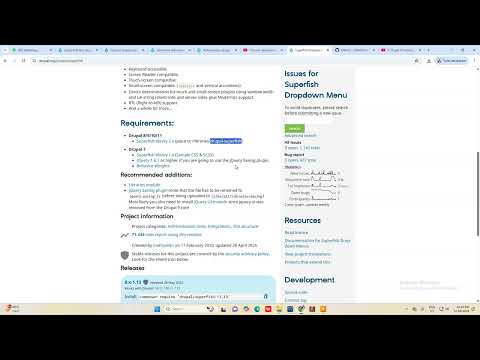
Drupal downloads the archive, verifies it and extracts it into /modules/contrib/superfish. After the “Installation was successful” message, go back to Extend and tick Superfish in the module list, then click Install.
If you use Composer and Drush, the same thing takes two commands:
composer require drupal/superfish
drush en superfish -y
drush cr
Important: the module alone is not enough. Superfish is only a Drupal wrapper — the actual jQuery plugin lives in a separate library, and the block does nothing until that library is in place. That is Step 2.
⭐ Step 2: Add the drupal-superfish 2.x Library
For Drupal 8, 9, 10 and 11 the module expects the 2.x branch of the library inside your Drupal root at:
/libraries/drupal-superfish
Download the library from GitHub, extract the archive and rename the extracted folder to drupal-superfish — the folder name must contain no version suffix such as -main or -2.0, otherwise Drupal will not detect it.
https://github.com/lobsterr/drupal-superfish
After uploading, the folder should look like this:
libraries/
└── drupal-superfish/
    ├── jquery.superfish.js
    ├── supersubs.js
    ├── supposition.js
    ├── hoverIntent.js
    ├── jquery.bgiframe.js
    └── style/
If you installed Drupal with the recommended Composer layout, “Drupal root” means the web/ directory, so the final path is web/libraries/drupal-superfish.
Optional but recommended: the fading easing effects need the jQuery Easing plugin. Upload it as libraries/easing/jquery.easing.js — rename the file to exactly jquery.easing.js. Once it is there, refresh the block configuration page and the Slide-in effect dropdown gains a handful of easing variants.
Clear the cache now (Configuration → Development → Performance → Clear all caches, or drush cr). Then check Reports → Status report: no “Superfish library missing” warning should appear.
⭐ Step 3: Create the Menu Structure
Superfish renders an existing menu, so build the navigation first. Go to Structure → Menus and edit Main navigation (/admin/structure/menu/manage/main).
Click Add link and create your top-level items. To add a dropdown, create a second link and choose the first one in the Parent link dropdown.
Repeat until you have the hierarchy you want — for example:
Main navigation
├── Home
├── About
│   ├── Why Us
│   ├── Services
│   └── Contact
└── Contact
Use Show row weights (or drag the crosshair icon) to reorder links. Children can be nested several levels deep; Superfish will animate each level as a new dropdown.
⭐ Step 4: Place the Superfish Block
Now go to Structure → Block layout (/admin/structure/block) and pick the region where the navigation should appear — usually Primary menu, Header or Navigation, depending on your theme.
Click Place block in that region and search for Superfish. The module registers one block per menu, so you will see entries such as:
Superfish: Main navigation
Superfish: Administration
Superfish: Footer
Superfish: Navigation user links
Click Place block next to Superfish: Main navigation. The configuration form opens immediately.
⭐ Step 5: Configure the Superfish Block
This is where the dropdown becomes a mega menu. The form is grouped in collapsible sections — Block settings, Superfish plugins, Multi-column sub-menus and Advanced settings.
Start with the Block settings section:
- Menu type — Horizontal (single row) is the classic navbar and the one used in the video. Horizontal (double row) splits a long menu into two lines, and Vertical (stack) renders a sidebar menu.
- Style — the built-in skins: Default, Black, Blue, Coffee, White or None (no skin at all, so your theme CSS is in full control).
- Add arrows to parent menus — adds the small ▼ / ► indicator to items that contain a dropdown.
- Drop shadows — adds a soft shadow under each sub-menu panel.
- Slide-in effect — None, Vertical, Horizontal or Diagonal. Vertical is the default; use Horizontal or Diagonal for a mega-menu feel, or None for an instant dropdown.
In the Superfish plugins section leave the defaults on at first:
- jQuery Supposition — keeps sub-menus inside the browser window by flipping them left/right when needed.
- jQuery hoverIntent — ignores accidental mouse passes; sub-menus open only when the pointer really rests on the item.
- sf-Touchscreen — converts the first tap on a parent item into “open the sub-menu”.
- sf-Smallscreen — replaces the menu with a
<select>element or an accordion below a width threshold. - Supersubs — computes sub-menu widths from their content instead of using fixed pixel widths.
Finally open Advanced settings → Superfish to control Animation speed (default fast, or a number of milliseconds) and Mouse delay (default 800 ms) — the delay a sub-menu stays open after the pointer leaves it.
Click Save block. The menu is now rendered with Superfish on the front end.
⭐ Step 6: Turn the Dropdown into a Mega Menu
A mega menu is a dropdown that spreads its children across several columns. Superfish has this built in — open the block’s Configure link again and expand Multi-column sub-menus.
- Tick Enable multi-column sub-menus.
- Start from depth — the depth where the multi-column panel begins.
1makes the first dropdown a mega panel. - Levels — how many sub-menu levels are pulled into that panel.
2is the usual choice, so grandchildren become columns.
Save the block, then add a little CSS to lay the columns out. Add this to your theme stylesheet (or the Simple CSS plugin if you prefer not to touch the theme):
/* Mega menu panel */
.sf-menu .sf-mega {
  padding: 20px;
  display: flex;
  flex-wrap: wrap;
  gap: 24px;
  background: #ffffff;
  border-top: 3px solid #0d6efd;
  box-shadow: 0 12px 28px rgba(0, 0, 0, 0.15);
}

/* Each child level becomes a column */
.sf-menu .sf-mega > ul {
  flex: 1 1 200px;
  margin: 0;
  padding: 0;
  list-style: none;
}

/* Column headings */
.sf-menu .sf-mega > ul > li > a {
  display: block;
  font-weight: 600;
  padding-bottom: 8px;
  border-bottom: 1px solid #e5e5e5;
}

/* Link hover */
.sf-menu a {
  transition: color 0.2s ease, background-color 0.2s ease;
}

.sf-menu a:hover,
.sf-menu li.sfHover > a {
  color: #0d6efd;
}
Because Superfish outputs real nested lists, the same markup also works for a one-column dropdown — the flex rule simply wraps into a single column on narrow screens.
⭐ Step 7: Remove Duplicate Menu Blocks
After placing the Superfish block you may see the navigation two or three times. That is not a Superfish bug — it happens because the theme already placed its own Main navigation and Search blocks in the same region.
Open Structure → Block layout, find the region that holds the duplicates and click Remove on every block you do not need:
- the theme’s plain Main navigation block,
- any duplicated Superfish: Main navigation block,
- unused blocks such as the secondary search form.
Keep exactly one Superfish block per region, then click Save blocks. Note that Superfish blocks can appear more than once in the list if you placed the same block twice — deleting the extra copies is safe.
⭐ Step 8: Hide the Block Title
By default the block prints its label — “Main navigation” — above the menu, which looks odd in a header. Open the block’s Configure dialog and untick Display title (the checkbox under Block settings).
Save the block and reload the front page: only the menu itself is visible now.
⭐ Step 9: Make the Mega Menu Responsive
Superfish already ships everything needed for mobile, but the two small-screen plugins have to be enabled deliberately in the Superfish plugins section:
- sf-Touchscreen — keeps dropdowns usable on tablets by turning the first tap into a hover equivalent. Set the Window width settings and the User agent detection method if you want it to trigger only on touch devices.
- sf-Smallscreen — below the configured window width the menu is replaced by a native
<select>dropdown or by an accordion. Both handle unlimited nesting far better than a hover menu on a phone.
For the <select> variant you can set an optional first option title (for example Navigate…) and exclude utility classes such as sf-menu-item--no-mobile from the list.
Because a <select> is a native control, it is also fully keyboard and screen-reader friendly — which is why it is the safer default for mobile.
⭐ Step 10: Clear Caches and Test
Drupal caches block and menu output aggressively, so always clear the cache after changing menu links, block placement or library files:
drush cr
Or use Configuration → Development → Performance → Clear all caches. Then verify:
- Hovering a parent item opens the dropdown with the animation you selected.
- Nested children appear as columns inside the mega panel.
- The ▼ arrow is visible on parent items.
- Tab moves focus through the links and Esc closes the open sub-menu.
- Resizing the window below the small-screen width switches to the
<select>or accordion.
⭐ Troubleshooting
The block renders nothing / status report warns about a missing library. The library folder is wrong. It must be libraries/drupal-superfish (or web/libraries/drupal-superfish) with no version suffix in the name, and the files must be readable by the web server (755 for folders, 644 for files).
Dropdowns do not open at all. Open the browser console: a JavaScript error such as “jQuery is not defined” means the theme does not attach core/jquery. Add core/jquery, core/drupal and core/once as library dependencies in your theme’s .libraries.yml. Superfish also needs the menu to be rendered by the Superfish block — a plain menu block has no behaviour attached.
The menu appears three times. Duplicate blocks in the same region — see Step 7.
Slide-in effects look identical. Without libraries/easing/jquery.easing.js only the four base effects (None, Vertical, Horizontal, Diagonal) are offered. Upload the file, clear the cache and reopen the form.
Sub-menu is cut off by the header. Check the region and the wrapper overflow. Superfish’s Supposition plugin can only reposition a menu that is not clipped by a parent with overflow: hidden.
⭐ Quick Reference
Install module        /admin/modules/install
Enable module         /admin/modules
Menu links            /admin/structure/menu/manage/main
Block layout          /admin/structure/block
Clear caches          /admin/config/development/performance
Library path          libraries/drupal-superfish
Easing plugin         libraries/easing/jquery.easing.js
Summary
You now have a working Superfish mega menu in Drupal 10/11: the module installed from drupal.org, the drupal-superfish 2.x library in place, a real menu tree with children, a Superfish block in the correct region, multi-column panels, arrows, shadows and a mobile fallback.
From here, the usual next steps are theming the menu to match your brand, adding icons to the mega menu columns and enabling Drupal’s internal page cache so the menu is served from cache on every page.
🎥 Watch the full walkthrough: Drupal Superfish Mega Menu Tutorial (Step-by-Step) on the Tutorial Rays YouTube channel.