
AI Reading
Quick summary of this article
Flutter's Row and Column widgets are essential layout tools: Row arranges child widgets horizontally in a line, while Column stacks them vertically from top to bottom. Both accept multiple children and are commonly used with colored containers to demonstrate basic layout behavior.
- Row places child widgets side-by-side horizontally, useful for elements like buttons or images aligned in a row
- Column stacks child widgets vertically, ideal for arranging content such as headers, text, and buttons
- Both widgets can be customized with properties like MainAxisAlignment and CrossAxisAlignment for spacing and alignment
- Mastering Row and Column is key to building responsive and structured Flutter layouts
Understanding Row and Column Widgets in Flutter
In Flutter, Row and Column are two fundamental layout widgets used to arrange child widgets horizontally and vertically, respectively. These are the building blocks of every Flutter layout. In this article, we’ll explore how to create rows and columns with simple colored boxes to understand how the layout behaves.
📦 Flutter Row Example
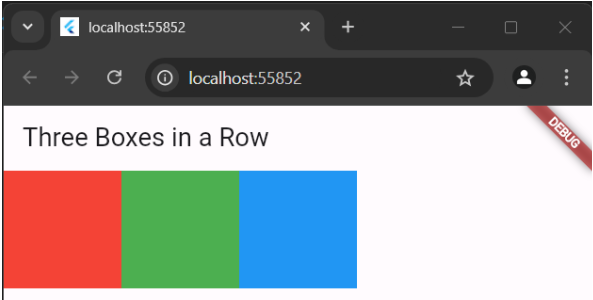
The Row widget places its children side by side, in a horizontal line. This is useful when you want to align widgets horizontally like buttons, images, or any elements placed side by side.
// Flutter Row Example
import 'package:flutter/material.dart';

void main() => runApp(RowExample());

class RowExample extends StatelessWidget {
  @override
  Widget build(BuildContext context) {
    return MaterialApp(
      home: Scaffold(
        appBar: AppBar(title: Text("Three Boxes in a Row")),
        body: Row(
          children: [
            Container(
              color: Colors.red,
              height: 100,
              width: 100,
            ),
            Container(
              color: Colors.green,
              height: 100,
              width: 100,
            ),
            Container(
              color: Colors.blue,
              height: 100,
              width: 100,
            ),
          ],
        ),
      ),
    );
  }
}
This example shows three containers aligned horizontally, each with a fixed height and width and a different background color.
📦 Flutter Column Example
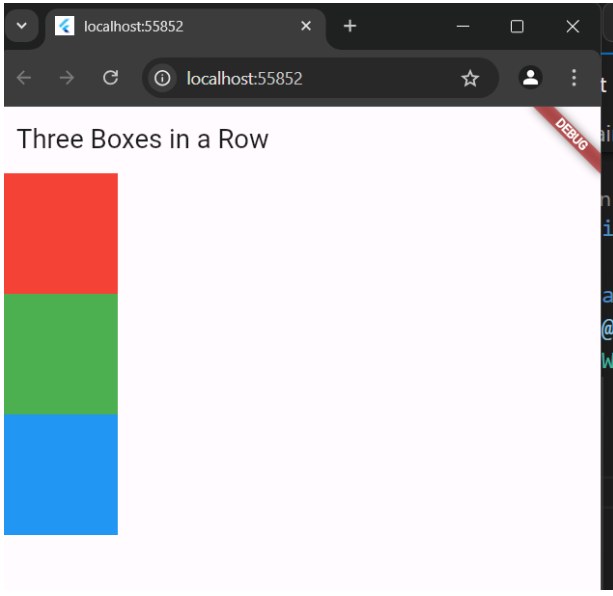
The Column widget is the vertical counterpart to Row. It places its children in a top-to-bottom fashion, ideal for stacking widgets vertically like headers, content, and buttons in a scrollable view.
// Flutter Column Example
import 'package:flutter/material.dart';

void main() => runApp(ColumnExample());

class ColumnExample extends StatelessWidget {
  @override
  Widget build(BuildContext context) {
    return MaterialApp(
      home: Scaffold(
        appBar: AppBar(title: Text("Three Boxes in a Column")),
        body: Column(
          children: [
            Container(
              color: Colors.red,
              height: 100,
              width: 100,
            ),
            Container(
              color: Colors.green,
              height: 100,
              width: 100,
            ),
            Container(
              color: Colors.blue,
              height: 100,
              width: 100,
            ),
          ],
        ),
      ),
    );
  }
}
In this example, the same colored containers are arranged vertically, one after the other.
📌 Summary
- Row is used to arrange widgets horizontally.
- Column is used to arrange widgets vertically.
- Both widgets accept multiple children and can be styled or spaced using properties like
MainAxisAlignmentandCrossAxisAlignment.
Mastering Row and Column is essential for building responsive and beautiful layouts in Flutter. They’re simple yet powerful tools that allow developers to control UI structure with ease.